The best free video editing software for Windows 11 depends on your skill level, with DaVinci Resolve dominating for studio-grade production and Microsoft Clipchamp leading for fast, everyday timeline creation. Both options integrate seamlessly with Windows 11 architecture, offering watermark-free exports, hardware-accelerated rendering, and modern user interfaces tailored for high-resolution displays.
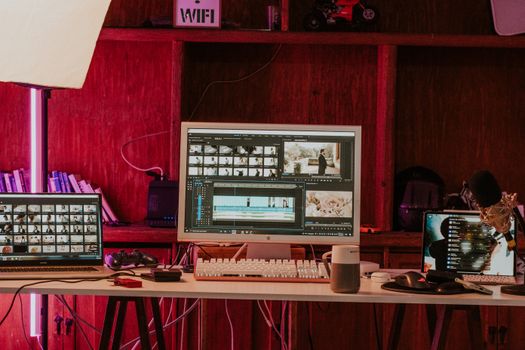
DaVinci Resolve by Blackmagic Design represents the gold standard of professional post-production software available on Windows 11 without a price tag. Unlike stripped-down trial software, the free version of DaVinci Resolve provides a complete, non-linear editing suite that Hollywood studios routinely deploy for feature films and broadcast television.
1. DaVinci Resolve: Hollywood-Grade Post-Production
Key Features and Windows 11 Optimization
DaVinci Resolve leverages Windows 11 direct storage architectures and modern GPU computing via DirectX and OpenCL. The software is organized into specialized workspaces called “Pages”: Cut (rapid assembly), Edit (traditional timeline editing), Fusion (compositing and motion graphics), Color (industry-standard color grading), Fairlight (complete digital audio workstation), and Deliver (multi-format encoding). It supports editing up to 4K Ultra HD at 60 frames per second without imposing any export watermarks.
Strengths and Limitations
- Pros: Unrivaled node-based color grading; professional Fairlight audio suite with native VST plugin support; zero watermarks on standard exports; reliable multi-cam editing up to 16 angles.
- Cons: Steep learning curve for beginners; requires robust hardware (minimum 16 GB of RAM and a dedicated graphics card with at least 4 GB of VRAM) to prevent timeline stuttering.
2. Microsoft Clipchamp: Built-In Convenience for Fast Projects
Integrated directly into Windows 11 as the default video editing utility, Microsoft Clipchamp replaces legacy utilities like Windows Movie Maker and the basic Photos Video Editor. It bridges the gap between complex desktop applications and lightweight web-based editors.
Key Features and Windows 11 Optimization
Clipchamp features native integration with Windows 11 file systems and OneDrive cloud storage. It offers a magnetic timeline that automatically snaps clips together, preventing unintentional black frames or audio sync drifts. The interface includes drag-and-drop stock assets, simple transitions, aspect-ratio switching (ideal for flipping between 16:9 widescreen and 9:16 vertical video), and an integrated Azure-powered text-to-speech generator that produces natural-sounding voiceovers across dozens of languages.
Strengths and Limitations
- Pros: Pre-installed on Windows 11 or free via the Microsoft Store; crisp 1080p watermark-free exports on the free tier; intuitive drag-and-drop workflow; automatic speech-to-text subtitle generation.
- Cons: Cloud-hybrid framework can consume significant system memory in browser sessions; lacks advanced color wheels, optical flow speed adjustments, and multi-track audio mastering.
3. Shotcut: Robust Open-Source Timeline Editing
Shotcut is an entirely open-source, cross-platform video editor that gives Windows 11 users deep technical control without corporate paywalls, account registrations, or telemetry tracking. Powered by the FFmpeg multimedia framework, Shotcut can read and edit virtually any modern codec natively.
Key Features and Windows 11 Optimization
Shotcut supports native timeline editing, meaning you do not need to import files into a separate project library before placing them on the track. It takes advantage of Windows 11 multi-core CPU scheduling and offers hardware-accelerated encoding via AMD AMF, Intel Quick Sync, and Nvidia NVENC. Users can arrange modular UI panels to build a personalized editing environment across multi-monitor setups.
Strengths and Limitations
- Pros: 100% free with no commercial restrictions or paid tiers; handles resolutions up to 8K; vast collection of customizable video and audio filters with keyframe automation; low installation footprint.
- Cons: User interface is less polished than commercial competitors; transitions require overlapping clips manually rather than dragging presets; default title design tools feel dated.
4. OpenShot: Intuitive Multi-Track Editing for Beginners
OpenShot is an open-source, non-linear video editor designed specifically for simplicity, accessibility, and ease of use. It strips away technical clutter, allowing new creators to assemble videos within minutes of initial installation.
Key Features and Windows 11 Optimization
OpenShot provides an unlimited track layout, meaning creators can stack as many audio layers, video overlays, and watermark logos as their system memory permits. It integrates with Blender to generate 3D animated titles directly inside the application and utilizes the libopenshot library for smooth keyframe animation curves. Its drag-and-drop desktop integration functions smoothly alongside the Windows 11 File Explorer.
Strengths and Limitations
- Pros: Simple interface that is immediately understandable for novices; unlimited audio and video layers; real-time preview resizing; zero watermarks or export restrictions.
- Cons: Real-time playback can lag on older processors during complex keyframe animation; rendering times are slower than hardware-accelerated commercial alternatives.
5. CapCut for Windows: Fast AI-Powered Social Media Editing
Originally popularized on mobile devices, CapCut’s dedicated Windows 11 desktop client has quickly become a favorite for content creators focused on YouTube Shorts, TikTok, and Instagram Reels.
Key Features and Windows 11 Optimization
CapCut desktop takes full advantage of modern Windows 11 GPU acceleration to run localized artificial intelligence features. These include automatic speech-to-text captions, background removal without a green screen, optical audio isolation, and auto-reframing for vertical social formats. The desktop layout adapts smoothly to high-refresh-rate monitors and offers quick project export presets tuned for major streaming platforms.
Strengths and Limitations
- Pros: Industry-leading automatic caption generator with animated text templates; comprehensive sound effects and royalty-free music library; slick user interface with responsive scrubbing.
- Cons: Several advanced features and transitions require an optional “Pro” subscription; requires an active internet connection to download asset packs and cloud presets.
| Video Editor | Best Suited For | Max Free Resolution | Watermark on Free Tier? | Minimum RAM Required | License Model |
|---|---|---|---|---|---|
| DaVinci Resolve | Advanced & Professional Editors | 4K UHD (3840x2160) | No | 16 GB | Freemium (Free version is fully functional) |
| Microsoft Clipchamp | Casual Users & Quick Social Edits | 1080p Full HD | No | 8 GB | Freemium (Core tools free) |
| Shotcut | Intermediate Open-Source Users | 8K UHD | No | 8 GB | Completely Free / Open-Source |
| OpenShot | Beginners Needing Multi-Track | 4K UHD | No | 4 GB | Completely Free / Open-Source |
| CapCut Desktop | Shorts, Reels, & TikTok Creators | 4K UHD | No (on core exports) | 8 GB | Freemium (Ad-supported features) |
Our Top Pick
DaVinci Resolve is our top pick as the absolute premier editing software for Windows 11. While it presents a noticeable learning curve for novices, it remains the only software package that provides an end-to-end Hollywood-standard post-production workflow completely free of charge.
Unlike freemium alternatives that limit resolution to 720p or slap intrusive watermarks across exported video, DaVinci Resolve permits pristine 4K 60fps exports right out of the box. Its advanced node-based color grading, Fairlight digital audio workspace, and hardware-accelerated processing harness the full power of modern Windows 11 desktops and laptops. For dedicated editors seeking long-term creative freedom, you can download DaVinci Resolve here to elevate your projects to cinema-grade quality.
Frequently Asked Questions
Does Windows 11 come with a completely free built-in video editor?
Yes, Windows 11 includes Microsoft Clipchamp as its native video editing platform. Clipchamp is accessible directly from the Start menu or downloadable via the Microsoft Store, providing watermark-free 1080p video exports on its standard free tier.
Which free Windows 11 video editor exports in 4K without a watermark?
DaVinci Resolve and Shotcut both export projects in 4K resolution (and even higher resolutions in Shotcut) without applying a watermark. Neither tool requires a paid subscription to unlock standard high-bitrate Ultra HD output settings.
How much RAM is needed for editing video smoothly on Windows 11?
For basic 1080p editing using applications like Clipchamp or OpenShot, 8 GB of RAM is sufficient. However, for 4K video editing, multi-track layering, or running complex suites like DaVinci Resolve, 16 GB of high-speed system RAM is the recommended baseline.
Is DaVinci Resolve genuinely free to use for commercial YouTube videos?
Yes, Blackmagic Design allows creators to use the free version of DaVinci Resolve for commercial projects, including monetized YouTube channels and client deliverables, without paying licensing fees or royalties.
What is the easiest free video editor for complete beginners on Windows 11?
Microsoft Clipchamp is the easiest option because of its simple drag-and-drop timeline, pre-built templates, and zero-configuration installation. OpenShot is another excellent alternative if you prefer an open-source, non-cloud-connected timeline.
Can open-source editors like Shotcut handle modern video formats like HEVC (H.265)?
Yes, because Shotcut is built upon the robust FFmpeg multimedia architecture, it natively reads and decodes modern formats including HEVC (H.265), AV1, Apple ProRes, and standard H.264 without requiring third-party codec packs.
Conclusion
Finding the best free video editing software for windows 11 comes down to balancing your technical expertise with your hardware capabilities. Whether you choose the cinema-grade color fidelity of DaVinci Resolve, the open-source freedom of Shotcut, or the streamlined simplicity of Microsoft Clipchamp, modern PC creators no longer need to pay expensive monthly subscription fees to produce polished, high-definition content. Select the platform that matches your creative workflow, leverage Windows 11 hardware-accelerated rendering, and start cutting your footage with confidence.