To recover deleted photos from an Android device, check the “Recently Deleted” or “Trash” folder inside Google Photos or your default Gallery app, where files remain for 30 to 60 days. If the images were permanently deleted, immediately turn off Wi-Fi and mobile data, then use a cloud backup or specialized PC recovery software before new data overwrites the deleted files.
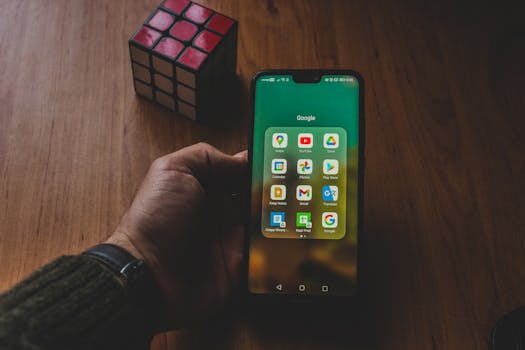
Most users who accidentally delete photos have not actually erased them from the device. Modern Android operating systems and gallery applications employ a failsafe mechanism similar to the Recycle Bin on Windows or the Trash on macOS. When you tap delete, the media files move to a temporary holding folder where they remain for a set retention window—typically 30 or 60 days—before being permanently purged.
1. Check the Android Trash and Recently Deleted Folders
Restoring from Google Photos Trash
Google Photos serves as the default photo manager on Google Pixel, Motorola, and many other stock Android devices, while also being widely installed on Samsung phones. When a synced image is deleted, it moves to the Google Photos Trash.
- Open the Google Photos app on your Android device.
- Tap the Collections or Library tab at the bottom of the screen.
- Select the Trash (or Bin) icon.
- Touch and hold the photos or videos you want to restore.
- Tap Restore at the bottom of the display. The files will return to your phone’s gallery app, Google Photos library, and any original albums.
Note that items backed up to Google Photos remain in the Trash for 60 days. Items deleted from your device without prior cloud backup remain in the Trash for only 30 days.
Restoring from Samsung Gallery Trash
Samsung devices feature their own custom Gallery app tied to Samsung Cloud and Microsoft OneDrive. Samsung separates its internal trash bin from Google Photos.
- Launch the native Gallery app on your Samsung Galaxy phone.
- Tap the Menu icon (three horizontal lines) in the lower-right or upper-right corner.
- Tap Trash.
- Tap Edit at the top right, select the images you need, and press Restore All or select individual images and tap the curved arrow restore icon.
Other manufacturers like Xiaomi, OnePlus, and Motorola feature similar folders labeled “Recently Deleted” within their stock gallery applications. Always inspect this folder before attempting advanced recovery procedures.
2. Restore Deleted Photos from Cloud Backup Services
If your photos are no longer in the local trash folder, the next best recovery avenue is off-device cloud storage. Android seamlessly integrates with several automatic synchronization services that run quietly in the background when connected to Wi-Fi.
Google Account and Google Drive
Every Android device requires a Google account for initial setup, which frequently enables automatic Google Drive and Google Photos sync by default.
Even if an image was deleted locally via a file manager, the cloud copy may remain untouched if the deletion did not sync properly due to airplane mode or disabled background data. Visit the Google Photos web interface on a computer browser (photos.google.com) and log in with your primary Google credentials. Check the main timeline, archive, and trash bin. Often, photos removed via third-party cleanup apps remain preserved in the cloud catalog.
Microsoft OneDrive and Samsung Cloud
Samsung transitioned its native cloud backup system to Microsoft OneDrive. If you linked your Samsung account with Microsoft, your photos might be mirrored in OneDrive storage.
- Open the OneDrive app on your phone or visit the OneDrive portal on a computer.
- Navigate to the Photos tab.
- If the pictures are missing, tap the Me tab (profile icon) and open the Recycle Bin.
- Select the files you want to save and tap Restore.
Third-Party Backups: Dropbox and Amazon Photos
Many consumers in the United States utilize Amazon Prime, which includes unlimited full-resolution photo storage via Amazon Photos. Similarly, Dropbox offers automatic camera uploads. If you have either app installed, open them and inspect their respective media feeds and trash bins. Cloud services maintain independent trash lifecycles, giving you a secondary layer of protection against local device deletions.
3. Retrieve Photos via Android Data Recovery Software on PC
When files are permanently deleted from internal storage and no cloud backups exist, desktop-based data recovery software is your most reliable recourse. When Android deletes a file, it does not instantly overwrite the underlying flash memory blocks. Instead, the operating system marks the storage index (the pointer) as free space. Until new data—such as an app update, video stream, or system cache—occupies that sector, your photos remain physically present.
How Desktop Recovery Software Works
Desktop recovery tools run on Windows or macOS and interface with your Android phone over a physical USB connection. They bypass the phone’s high-level user interface and scan the raw storage blocks using low-level communication protocols.
To prepare your Android phone for desktop software recovery:
- Enable Developer Options: Open Settings > About Phone, find Build Number, and tap it seven consecutive times until you see a prompt declaring you are a developer.
- Enable USB Debugging: Go to Settings > System > Developer Options and toggle on USB Debugging.
- Connect your Android phone to your PC using a high-quality USB-C cable.
- Set the USB connection mode to File Transfer / MTP.
- When prompted on your phone screen, check Always allow from this computer and tap OK.
Running the Scan
Once connected, your chosen desktop utility will scan the internal database. The program searches for known image headers (such as JPEG, PNG, HEIC, and RAW formats). When the scan finishes, the software generates a preview gallery where you can verify whether the files are intact or corrupted before exporting them safely to your PC’s hard drive. Never restore the files directly back onto the Android device during this process, as doing so can overwrite other files awaiting recovery.
4. Recover Photos from an External MicroSD Card
If your photos were stored on an external memory card rather than internal device storage, your recovery prospects increase significantly. Modern Android internal storage utilizes file-based encryption (FBE), making deep hardware-level raw scans challenging without specialized privileges. MicroSD cards, however, rarely employ this encryption.
The Removal and Scanning Process
Do not attempt to scan the SD card while it remains inside the phone. Instead:
- Power down your Android smartphone.
- Eject the MicroSD card using a SIM-ejector tool.
- Insert the card into a dedicated USB card reader plugged into your computer.
- Download a dedicated computer recovery program such as Recuva, PhotoRec, or EaseUS Data Recovery Wizard.
- Point the scanning software directly at the drive letter assigned to the SD card.
- Run a Deep Scan. This instructs the program to search the entire file allocation table (FAT32 or exFAT) for orphaned photo fragments.
- Save any recovered photos to your computer’s local storage drive first, format the SD card if it suffered from file-system corruption, and transfer the restored pictures back afterward.
5. Photo Recovery Methods Compared
Choosing the appropriate recovery technique depends on where your photos were kept, whether you maintain active backups, and whether the files were stored on internal flash memory or external media. The table below outlines the core metrics for each method.
| Recovery Method | Success Rate | Technical Difficulty | Computer Required? | Typical Cost |
|---|---|---|---|---|
| Gallery / Photos Trash | Very High (100% within time window) | Beginner | No | Free |
| Cloud Storage Restoration | High (Dependent on auto-sync) | Beginner | No | Free |
| MicroSD Card Scan | High to Very High | Intermediate | Yes | Free to $40 |
| PC Android Recovery Software | Moderate to High (Time-sensitive) | Intermediate | Yes | $35 - $70 |
| Hardware Data Recovery Lab | High (Severe device damage) | Advanced (Professional) | No (Mail-in) | $300 - $1,500+ |
Our Top Pick
For users who have permanently deleted photos from internal storage without a backup, Tenorshare UltData for Android is our top pick.
Unlike many legacy recovery suites that mandate rooting your device—a process that voids warranties, trips Knox security on Samsung phones, and introduces security vulnerabilities—Tenorshare UltData recovers deleted photos without root access for the majority of standard media formats. The software excels at parsing SQLite database remnants left behind by deleted camera photos and WhatsApp attachments. It provides a clean, user-friendly interface that lets you preview thumbnails of recovered photos before committing to a purchase, protecting you from paying for unrecoverable, corrupted data. Its broad compatibility with over 6,000 Android phone models and reliable performance on modern Android versions (Android 10 through 14) make it the most dependable option for consumers.
Frequently Asked Questions
Can I recover permanently deleted photos without a computer?
Yes, but only if you previously activated a cloud backup service such as Google Photos, Microsoft OneDrive, or Dropbox. If the photos were permanently deleted from internal storage, the trash bin is empty, and no cloud backups exist, recovering them directly through an Android app is rarely successful because installing new apps onto the phone can overwrite the exact storage sectors where your deleted photos reside.
Where do permanently deleted photos go on Android?
Permanently deleted photos do not relocate to an invisible folder. Instead, the Android operating system marks the storage sectors containing the file index data as available space. The underlying binary data of the image remains physically present on the flash memory until the system needs that space to write new data, such as app caches, system updates, or new media.
Can I recover photos deleted months or years ago?
Recovering photos deleted months or years ago is extremely unlikely unless a forgotten backup exists on Google Drive, an old SD card, or an external hard drive. Because smartphones constantly write new data for background processes, app updates, and incoming messages, the old storage sectors that held those photos have almost certainly been overwritten many times over.
Does rooting my Android phone guarantee photo recovery?
Rooting does not guarantee recovery, though it does grant recovery software raw access to the deepest block levels of your internal storage. However, the process of rooting requires modifying the system partition and often unlocking the bootloader, which frequently triggers an automatic factory reset. This wipe will destroy the very data you are attempting to salvage.
Why did my recovered photos come back blurry or as tiny thumbnails?
If your recovered photos appear low-resolution or blurry, the recovery tool likely only retrieved the cached thumbnail files generated by your gallery app, rather than the original, full-resolution JPEG, DNG, or HEIC image files. This occurs when the original media sectors have already been overwritten, leaving only the low-resolution cache intact within your phone’s temporary databases.
How do I stop my phone from overwriting deleted photo storage?
To prevent your phone from overwriting deleted data, immediately turn on Airplane Mode to disable Wi-Fi and cellular connections. Avoid taking new photos, downloading apps, streaming music, or browsing the web. If possible, avoid restarting the device repeatedly, as the Android boot sequence writes significant amounts of temporary cache data to internal memory.
Conclusion
Understanding how to recover deleted photos from android requires moving quickly and choosing the appropriate method based on your backup status. If your images are not waiting inside the Gallery or Google Photos Trash, avoid using your device to prevent flash memory blocks from being overwritten. Check off-site cloud accounts first, and if necessary, connect your smartphone to a desktop using trusted recovery software to retrieve your lost files. Once your images are safely restored, establish an automated cloud and local backup routine to permanently safeguard your photos against future accidental deletions.