To recover deleted photos from an SD card, immediately remove the card from your device to prevent data overwriting, then connect it to your computer using an external card reader. Launch a reliable photo recovery tool such as Disk Drill or Recuva, scan the SD card, preview the detected image files, and save the recovered photos directly to your internal hard drive.
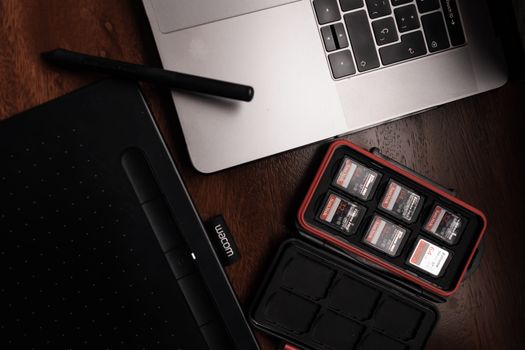
When you delete a photo from a digital camera, smartphone, or tablet, the actual image data does not vanish instantly from the memory card. Instead, the storage device’s file system (typically FAT32, exFAT, or NTFS) merely removes the file pointer and marks the space occupied by that picture as free space ready to receive new information.
1. Stop Using the SD Card Immediately
The Mechanics of Data Overwriting
Until fresh data writes over those physical flash memory blocks, the raw binary information of your photos remains intact. However, if you continue snapping new pictures, recording video clips, or even leaving the card mounted in a phone running background app updates, your host device will write new files across those unallocated sectors. Once overwritten, original pictures become irreversibly damaged or completely unrecoverable, even for professional data recovery labs.
Critical First Steps After Deletion
- Eject the card right away: Turn off your camera, drone, or mobile phone before pulling out the SD or microSD card.
- Toggle the write-protect switch: If you are using a standard full-size SD card, slide the tiny plastic lock switch on its left edge downward into the “Lock” position. This prevents the host computer or operating system from generating hidden cache files, indexing directories, or writing temp data onto the flash storage while scanning.
- Avoid in-camera formatting: Never attempt to fix missing photos by running format commands or diagnostics inside your camera menu, as this can clear file allocation tables or invoke modern TRIM commands on specific embedded systems.
2. How to Recover Deleted Photos from an SD Card on Windows
Windows remains the most versatile operating system for handling removable media recovery, offering both command-line options and robust graphical utility support.
Method A: Scanning with Windows File Recovery
Microsoft provides a free, command-line recovery utility through the Microsoft Store called Windows File Recovery (compatible with Windows 10 build 19041 and newer).
- Insert your SD card into your PC via a USB card reader. Note the drive letter assigned to it (e.g.,
E:). - Open the Microsoft Store, search for Windows File Recovery, and install the app.
- Open Windows Terminal or Command Prompt as an Administrator.
- Run a signature scan command tailored for photo restoration. For instance, to pull camera raw files and JPEGs from drive
E:to an output folder on driveC:, enter:winfr E: C:\RecoveredPhotos /signature - Press Y when prompted to proceed. The tool will parse the card’s clusters and export all recognized photo signatures into your designated directory.
Method B: Checking File System Errors with CHKDSK
Occasionally, files disappear not because of intentional deletion, but due to file system corruption or a broken directory structure.
- Press
Win + R, typecmd, and pressCtrl + Shift + Enterto launch an elevated Command Prompt. - Type
chkdsk E: /f(replaceE:with your SD card’s drive letter) and press Enter. - Allow Windows to analyze and repair corrupt directory entries. If the system prompts you to convert lost chains to files, press Y.
- Navigate to the card in File Explorer. Check for newly generated
FOUND.000hidden folders containing.CHKfiles, which can be renamed back to.jpgor.pngusing file uncheck utilities.
3. How to Recover Deleted Photos from an SD Card on Mac
macOS handles removable storage volumes differently than Windows, often caching directory states or storing temporary deletion indexes on the card itself.
Method A: Checking the Hidden Trash on the Card
When you delete a photo from an SD card using Mac Finder, the operating system often moves the asset into a hidden directory on the card rather than purging it immediately.
- Connect the SD card to your Mac using an external adapter.
- Open the mounted SD card volume inside Finder.
- Press the keyboard shortcut
Command + Shift + . (period)to reveal hidden files and folders. - Look for a folder named
.Trashes. Double-click it, locate your deleted images, right-click (or Control-click) the files, and select Put Back or drag them to your desktop.
Method B: Extracting Files via Terminal
If the graphical interface fails to index or mount your photos, you can inspect the raw storage structure via macOS Terminal.
- Go to Applications > Utilities > Terminal.
- Type
diskutil listto locate the identifier of your SD card (such as/dev/disk2). - Use open-source Unix utilities like
ddto generate a byte-for-byte disk image backup before continuing:sudo dd if=/dev/rdisk2 of=~/Desktop/sdcard_backup.dmg bs=1m - Creating this virtual copy protects your physical media from physical wear during deep recovery passes.
4. Recovering Photos from Android Devices and Cameras
MicroSD cards are widely used in action cams, drones, dash cams, and Android smartphones. Each device manages deletion through proprietary interfaces or automated cloud backups.
Android Device Recovery Without a Computer
If your photos were stored on a microSD card inside an Android device:
- Open your default Gallery or Photos app.
- Navigate to the Albums or Library tab and tap Trash or Recently Deleted. Most mobile operating systems retain deleted media here for 30 to 60 days before purging.
- Check automated backup providers such as Google Photos, Microsoft OneDrive, or Dropbox. If cloud sync was active over Wi-Fi when you took the photos, your pictures might be preserved in cloud storage even if deleted locally from the SD card.
Digital Camera Memory Card Protocols
High-end cameras from Sony, Canon, Nikon, and Fujifilm format cards with complex subfolders (like DCIM/100CANON). When a camera marks a file as deleted, it often deletes the thumbnail cache alongside the high-resolution raw file (e.g., .CR3, .ARW, .NEF). Do not run recovery apps directly through the camera connected via USB cable; cameras often use MTP/PTP protocols, which hide unallocated storage clusters from recovery software. Always remove the memory card and insert it into a standalone USB 3.0 or UHS-II card reader connected directly to your computer.
5. Evaluating the Best SD Card Photo Recovery Software
When built-in operating system tools fail to find lost files, third-party data recovery software provides the deep-scan algorithms required to reconstruct fragmented photo formats.
| Software Name | Free Recovery Allowance | Supported Image Formats | Deep Scan Accuracy | OS Compatibility |
|---|---|---|---|---|
| Disk Drill | 500 MB (Windows) / Preview only (Mac) | 400+ formats (All RAW, JPG, HEIC, PNG) | Excellent | Windows, macOS |
| Recuva | Unlimited (Basic scan) | Standard formats (JPG, PNG, standard RAW) | Moderate | Windows only |
| EaseUS Data Recovery | 2 GB (with social share) | Standard and select proprietary RAW | Good | Windows, macOS |
| PhotoRec | Unlimited (Open Source) | 480+ file extensions | Good (No file names) | Windows, Mac, Linux |
| Stellar Photo Recovery | Preview only | Comprehensive camera RAW, raster, vector | High | Windows, macOS |
Key Selection Factors
- Camera RAW Support: If you shoot professional photography, the software must be capable of rebuilding non-standard RAW formats like Sony ARW, Canon CR3, Nikon NEF, and DNG.
- Drive Imaging: Top-tier recovery utilities allow you to make a byte-by-byte clone of your damaged or failing SD card so you can run intensive file recovery attempts against the image rather than stressing fragile hardware.
- Preview Capabilities: A true file preview validates that the internal image headers are intact and that the photo is not corrupted before you purchase a license.
Our Top Pick
Our top recommendation for recovering deleted photos from memory cards is Disk Drill Data Recovery by CleverFiles (#).
Disk Drill wins because it excels across the three most critical components of flash memory recovery: raw camera format parsing, hardware safety, and user accessibility. Unlike standard tools that rely solely on existing file system tables, Disk Drill incorporates an advanced carving engine that matches byte signatures for hundreds of proprietary photo formats, including difficult-to-reconstruct Canon CR3, Sony ARW, and Adobe DNG files.
Additionally, Disk Drill includes a built-in “Byte-to-byte Backup” tool at no extra cost. This allows you to create a complete DMG or ISO image of a struggling or degraded SD card, letting you scan the virtual copy while preserving the physical card from thermal or electronic failure. Combined with a clean, modern interface for both Windows and macOS users, full preview functionality prior to recovery, and a free 500 MB recovery tier on Windows, it provides the most dependable path to restoring lost family memories or professional shoots.
Frequently Asked Questions
Can I recover deleted photos from an SD card without software?
You can only recover photos without software if the files exist in a temporary holding area, such as your computer’s Recycle Bin, macOS Trash, or your smartphone’s “Recently Deleted” folder. If the images were deleted directly inside a digital camera or permanently cleared from the file system, specialized data recovery software is required to scan the raw flash storage and reconstruct the missing files.
Does formatting an SD card delete all photos permanently?
A standard (Quick) format does not permanently erase your photos; it simply wipes the partition tables and resets the file system markers, leaving the underlying image data intact until overwritten. However, performing a Full Format or low-level format will write zeros or random data across every sector, rendering all photos permanently unrecoverable by any consumer software.
Can I recover permanently deleted photos from an SD card on Android without a computer?
Yes, you can install mobile recovery applications directly from the Google Play Store, but doing so carries risk. Downloading apps and writing new data directly to the device can overwrite the very photos you are attempting to rescue. For the highest success rate, unmount the SD card, plug it into an external card reader, and perform the recovery scan using a desktop computer.
How much does it cost to recover photos from a corrupted SD card?
If the SD card is physically intact and recognized by your computer, DIY software ranges from free (open-source tools like PhotoRec) to $70–$90 for lifetime consumer licenses of commercial programs like Disk Drill or EaseUS. If the card suffers from physical damage, dead controller chips, or cracked NAND flash, professional cleanroom recovery services typically cost between $300 and $1,500 depending on the complexity.
Why can’t photo recovery software find my deleted pictures?
Recovery software may fail to detect your photos for three primary reasons: the deleted files were already overwritten by new photos or video recordings, the card’s NAND flash memory has degraded beyond readability, or the card suffered an electrical failure preventing the controller from exposing the storage blocks to the operating system.
Are free SD card recovery tools safe to use?
Reputable open-source or freeware tools like PhotoRec and Recuva are completely safe to use provided you download them directly from official developer websites. However, always ensure you configure the software to save recovered files to an internal hard drive or external backup drive—never restore files back onto the same SD card you are actively scanning.
Conclusion
Learning how to recover deleted photos from sd card drives requires swift action, the right hardware adapters, and an immediate halt to all new data writes. By safely unmounting the card, enabling the physical write-protection switch, and employing a dependable recovery tool like Disk Drill, you maximize your chances of restoring irreplaceable memories. Always create byte-level disk backups before scanning, verify your images using full-size file previews, and maintain redundant secondary cloud storage to protect your visual archives from future card failures.