To stop apps from draining your battery, turn off background app refresh, restrict location permissions to “While Using,” and disable non-essential push notifications for power-hungry applications. Additionally, check your phone’s native battery usage settings to identify power-draining apps, put unused software to sleep, and activate built-in low-power modes.
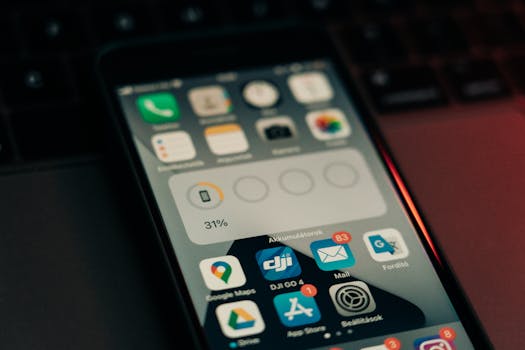
Before changing any settings, you need to pinpoint which applications are consuming the most energy. Modern smartphone operating systems provide detailed diagnostic dashboards that break down battery consumption by individual app.
1. Identify the Culprits Behind Your Battery Drain
Checking Battery Usage on iOS Devices
To audit energy usage on an iPhone or iPad, open the Settings app and navigate to Battery. Scroll down to view the Battery Usage by App section. You can toggle between the last 24 hours and the last 10 days. Tapping on the list switches the display from percentage share to actual time spent on screen versus background activity. If an application displays a high percentage of background activity despite low on-screen use, it is consuming resources without your active engagement.
Checking Battery Usage on Android Devices
On Android devices, open Settings and select Battery, then tap Battery Usage (or View Details depending on your phone manufacturer). Android lists app consumption in order of total discharge percentage since the last full charge. Look for apps near the top of the list that you rarely open. Android also highlights system-level background processes, making it easy to isolate software anomalies from regular system usage.
Distinguishing Foreground vs. Background Power Usage
Foreground drain occurs when you actively use an application on screen, such as streaming video or playing graphics-heavy games. Background drain happens when an application continues running operations while hidden, such as fetching emails, downloading app updates, checking location, or syncing files. Identifying whether an app is draining power in the foreground or background dictates which setting you must adjust to resolve the issue.
2. Adjust Essential App and System Settings
Once you identify which apps are taking up your battery capacity, adjusting a few core operating system settings will dramatically improve daily battery life.
Disable Background App Refresh
Background App Refresh allows applications to check for new content and update automatically when connected to Wi-Fi or cellular networks. While convenient, this continuous background activity consumes significant processor cycles and network data.
- On iOS: Navigate to Settings > General > Background App Refresh. You can disable it entirely, limit it to Wi-Fi connections only, or toggle off individual switches for apps that do not require constant updates (such as mobile games, shopping utilities, or streaming platforms).
- On Android: Go to Settings > Apps, select the target application, tap Mobile Data & Wi-Fi (or Battery), and turn off Allow background data usage or select Restricted under battery optimization.
Restrict Location Services Permissions
Location tracking using onboard GPS chips, Wi-Fi triangulation, and Bluetooth beacons is one of the single largest causes of mobile battery drain. Apps frequently request constant access to your geographic location even when background functionality is unnecessary.
Review your location permissions by opening Settings > Privacy & Security > Location Services on iOS, or Settings > Location > App permissions on Android. Change permissions for non-essential apps from “Always” or “Allow all the time” to “While Using the App” or “Ask Next Time.” Reserving constant location access strictly for navigation and safety applications saves substantial power over an entire day.
Manage Push Notifications and Sync Intervals
Every incoming push notification wakes up your device screen, triggers vibration motors, and activates wireless antennas. High-volume notification apps (such as social platforms, news outlets, and mobile games) rapidly deplete power when left unmanaged.
Navigate to your device’s notification settings menu and disable permissions for non-critical software. For email accounts, adjust the sync configuration from “Push” (which keeps an open connection to the server at all times) to “Fetch” (which checks for mail at set intervals, such as every 30 or 60 minutes) or “Manual.”
3. Implement Advanced Battery-Saving Techniques
Beyond basic permissions, implementing advanced software management techniques will optimize device efficiency and prolong hardware lifespan.
Keep Your Apps and System Software Updated
Software developers release updates regularly to address security vulnerabilities, patch memory leaks, and optimize code efficiency. Operating an outdated application can cause processor loops, leading to rapid drain and device overheating. Enable automatic updates in the Apple App Store or Google Play Store, or check for pending app updates manually once a week to ensure all applications run optimized code bases.
Enable Built-In Battery Saver Modes
Both major mobile operating systems feature low-power modes engineered to throttle background processes automatically when your charge drops.
- iOS Low Power Mode: Reduces screen brightness, limits display refresh rates to 60Hz, pauses iCloud photo sync, turns off background app refresh, and disables auto-downloads.
- Android Battery Saver: Limits background processing, restricts location services when the screen is off, turns off dark themes, and pauses background data transfers.
Configuring these modes to activate automatically when your battery reaches 20% extends operating time during critical moments.
Offload Unnecessary Apps and Use Mobile Web Alternatives
Certain complex mobile applications carry heavy background architectures that continuously drain energy despite aggressive permission restrictions. Social media applications, cross-platform instant messengers, and free ad-supported games are common offenders.
Consider removing heavy native applications and accessing their services through a web browser instead. Bookmarking mobile websites on your home screen grants access to primary service features without allowing persistent background processes to run on your device.
4. Evaluating Battery Management Strategies
Not all battery-saving interventions yield equal results. The table below compares common methods to help you prioritize actions based on effort, power efficiency gains, and functional trade-offs.
| Battery Management Strategy | Setup Effort | Battery Impact | Primary Trade-Off |
|---|---|---|---|
| Disable Background Refresh | Low | High | App content takes a few seconds to update upon opening. |
| Restrict Location Access | Medium | High | Apps must re-prompt for permission when using location features. |
| Enable Low Power Mode | Low | Very High | Temporary loss of smooth animations, background sync, and peak performance. |
| Disable Push Notifications | Medium | Moderate | Real-time alerts for low-priority applications are missed. |
| Switch to Dark Mode | Low | Moderate (OLED only) | Altered visual aesthetic across system interfaces. |
| Force-Closing Apps Manually | Low | Counterproductive | Increases CPU usage upon relaunch, wasting more battery power. |
5. Hardware and Display Optimizations
Managing software settings is only half the battle. Adjusting how hardware elements interface with your installed applications provides immediate relief to an overtaxed battery.
Manage Screen Brightness and Auto-Lock Timing
The display panel is typically the single largest consumer of battery power on any mobile device. Higher brightness levels demand exponentially more electrical current from the internal cell.
Turn on Auto-Brightness or Adaptive Brightness within your display settings to allow the phone to adjust illumination based on ambient light levels. Additionally, lower your device’s auto-lock screen timeout duration to 30 seconds or 1 minute. Shortening screen idle time prevents the display from drawing power when set down on a desk or table.
Optimize Connectivity Settings
Cellular data modems consume significant power when attempting to hold signals in areas with poor reception. When an application requests data in a weak signal area, the cellular modem boosts its transmission power to maintain connection integrity, rapidly exhausting energy reserves.
Connect to trusted Wi-Fi networks whenever possible, as Wi-Fi chips consume significantly less power to transmit data than cellular radios. When traveling through areas with poor coverage or no signal, toggle Airplane Mode to prevent applications from continuously forcing the modem to search for towers.
Prevent Thermal Throttling and Extreme Temperatures
Lithium-ion batteries rely on delicate chemical reactions to hold and discharge electrical current. Exposing your smartphone to high temperatures (above 95°F or 35°C)—such as leaving it in a hot vehicle or direct sunlight while running demanding apps—accelerates chemical degradation and causes immediate fast discharge. Keep your phone cool, remove heavy protective cases during rapid charging, and avoid intensive gaming while charging.
Our Top Pick
Our top pick for managing, monitoring, and stopping apps from draining your battery is AccuBattery for Android devices.
AccuBattery wins our top recommendation because it provides real-time, highly granular insight into power usage that native operating system menus fail to display. Rather than estimating usage based on vague percentages, AccuBattery measures actual battery charge and discharge current in milliamperes (mA) in real time. It clearly identifies which specific background applications cause active battery drain, alerts you to excessive wake-locks, and measures overall battery health capacity over time.
Additionally, the app includes a customizable charge alarm feature designed to notify you when your phone hits optimal charge levels (such as 80%), preserving long-term battery lifespan while keeping power-hungry software checked. You can learn more about managing app consumption through official software documentation at the Android Battery Management Guide or explore additional options on the Google Play Store.
Frequently Asked Questions
1. Why do apps continue to drain battery when I am not using them?
Apps continue to drain battery because they perform background tasks such as syncing cloud data, fetching push notifications, updating content, and tracking location via GPS. Operating systems permit these background tasks so applications load updated content instantly when opened, but unoptimized apps can abuse these privileges to continuously consume power.
2. Does closing background apps actually save battery life?
No, constantly force-closing background apps does not save battery life and often makes battery drain worse. Modern operating systems automatically freeze idle applications in RAM. Force-closing an app completely wipes it from memory, requiring the CPU to spend more power re-loading all application files the next time you open it.
3. Will turning on Dark Mode significantly reduce battery drain?
Dark Mode significantly reduces battery drain specifically on smartphones equipped with OLED or AMOLED screens. On these displays, individual pixels turn completely off to display black colors, drawing zero electrical power. Dark Mode offers minimal to no battery-saving benefits on older LCD screens, which require a continuous backlight regardless of displayed color.
4. How do I stop social media apps from using so much power?
To stop social media apps from draining power, disable their background app refresh permissions, restrict location access to “Never” or “While Using,” and turn off auto-playing videos within each app’s internal settings. Alternatively, uninstall resource-heavy native apps and access your accounts using a private mobile browser.
5. Can a degraded phone battery cause apps to drain faster?
Yes, a physically degraded lithium-ion battery has a reduced total chemical capacity and higher internal resistance. As a battery ages over hundreds of charge cycles, applications require a larger percentage of the remaining capacity to complete identical computing tasks, resulting in accelerated discharge rates compared to when the device was new.
6. Are third-party battery cleaner apps safe and effective?
Most third-party “battery cleaner” or “task killer” apps are ineffective, redundant, and potentially harmful to system stability. Modern operating systems manage RAM and CPU allocation efficiently without third-party intervention. Task-clearing tools often cause background loops as apps automatically attempt to restart, creating an endless cycle of battery drain.
Conclusion
Understanding how to stop apps draining battery is essential for maintaining optimal mobile performance and ensuring your device lasts throughout the day. By auditing app permissions, turning off background app refresh, limiting location services, and optimizing display settings, you can easily reclaim control over your device’s power consumption. Taking a few minutes to configure these built-in software controls eliminates unnecessary energy drain, preserves long-term battery health, and ensures your smartphone stays powered when you need it most.